
Using ZoomInfo MCP with Claude Code
Using Claude Code to automate your GTM motion
While Claude Code was originally created with developers in mind, it's use cases extend far beyond just helping developers enhance their coding workflows. Claude Code can connect with ZoomInfo's MCP server to provide powerful automations for Go-To-Market professionals looking to improve their workflows with AI
Connecting ZoomInfo with Claude Code is easy, all you need to do is:
- Create an MCP Application in the ZoomInfo DevPortal
- Connect to the ZoomInfo MCP using your application credentials
Create an MCP Application
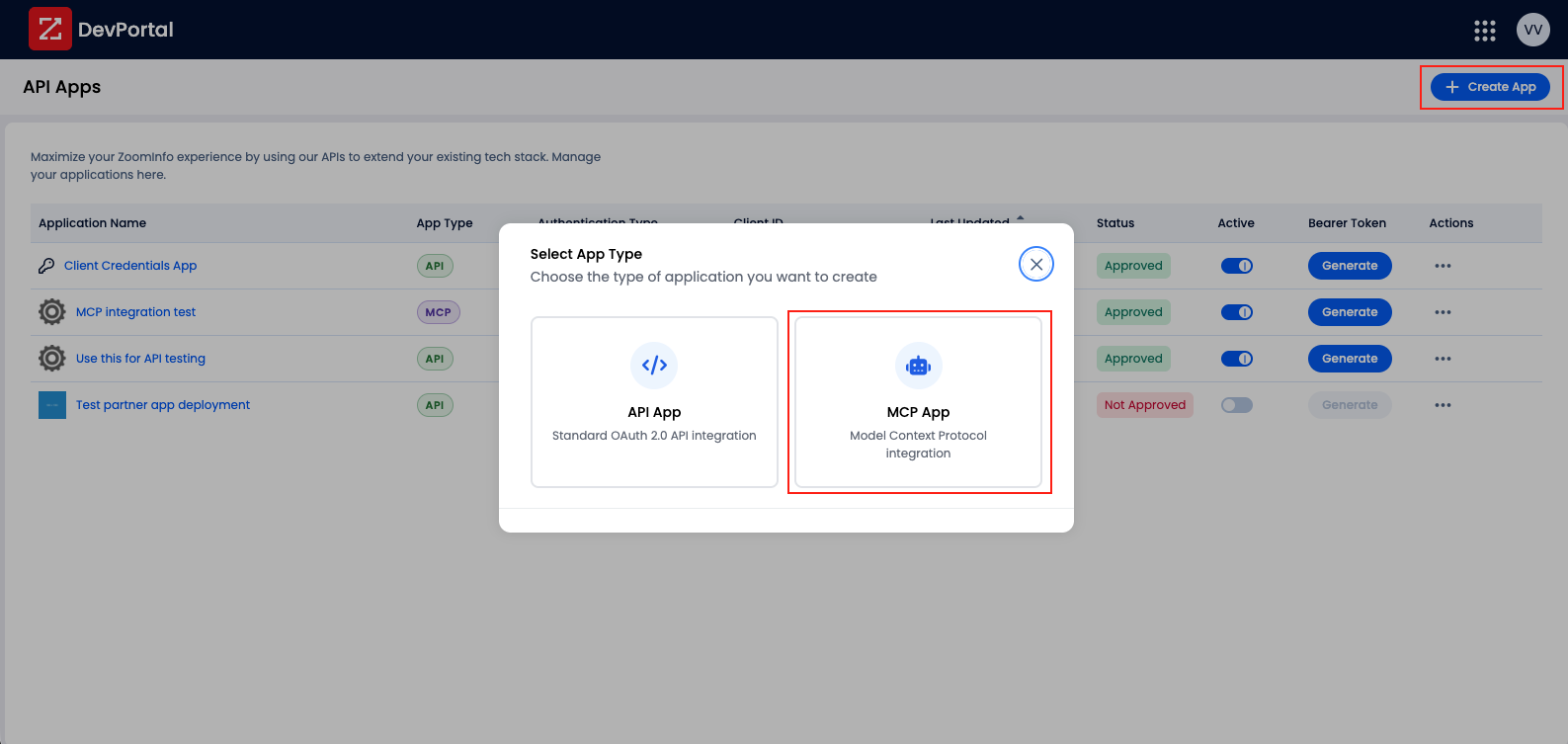
Navigate to https://developer.zoominfo.com and click the "Create App" button in the top right corner. Once clicked, a modal will appear with options for both API and MCP. Select "MCP App"
On the next page, enter a name for your application, ensure that you select "Authorization Code" for the authentication type, and add the following under the "Sign-in Redirect URIs"
http://localhost:8080/callback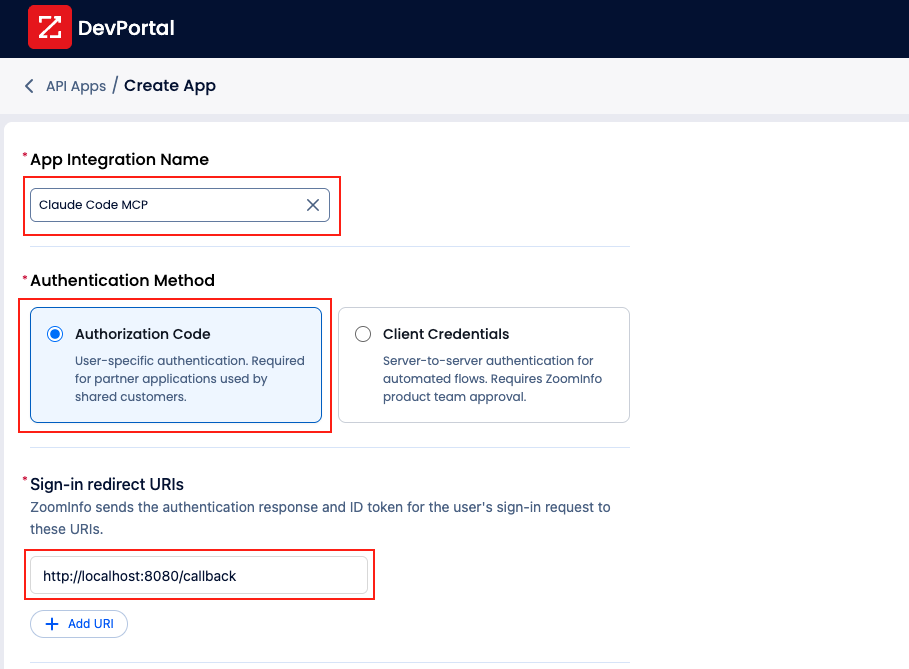
Click "Create" in the top right corner to create your application. It will now show up in the table on the DevPortal landing page.
The last thing required is to get the client_id and client_secret for your newly created app as you will need these to authenticate with Claude Code when you add the ZoomInfo MCP.
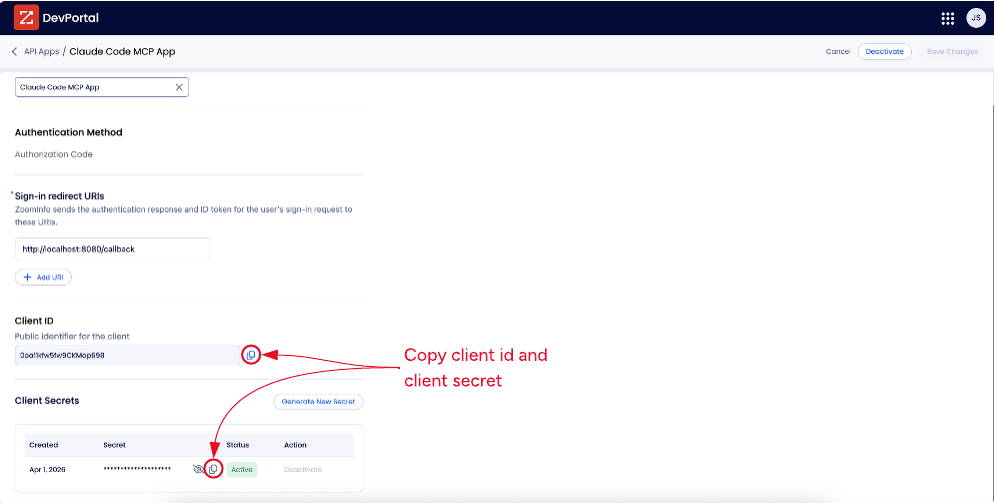
For security purposes, either copy your
client_secretas needed for the next step or store it somewhere secure. Do not store yourclient_secretanywhere on your computer in plaintext. Claude Code will securely store this secret within your computer's Keychain (iOS) or credential storage after successful authorization.
Connect to the ZoomInfo MCP
Now that you have created your application, you just need to take the application credentials (client_id and client_secret) and provide those values to Claude Code to begin working.
claude mcp add --transport http \
  --callback-port 8080 \
  --client-id <your-client-id> \
  --client-secret \
  zoominfo https://mcp.zoominfo.com/mcp
Run this command, substituting <your-client-id> with the value of the client_id from your created application. You will then be prompted to enter your client_secret. This will register the ZoomInfo MCP server with your Claude Code, BUT you will still not be connected yet.
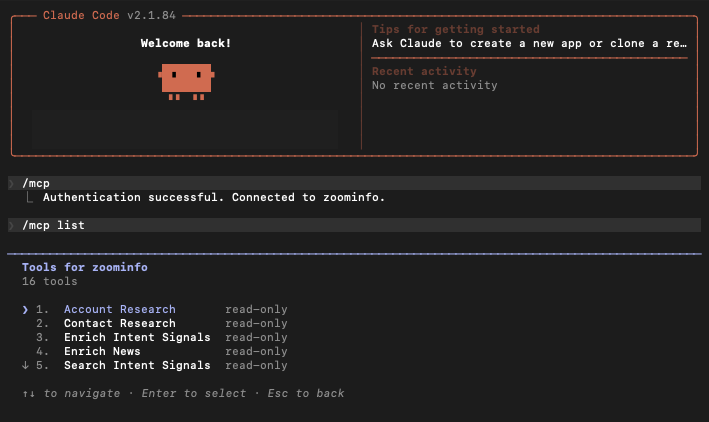
To initialize the connection to the ZoomInfo MCP, run the following command in Claude Code.
/mcp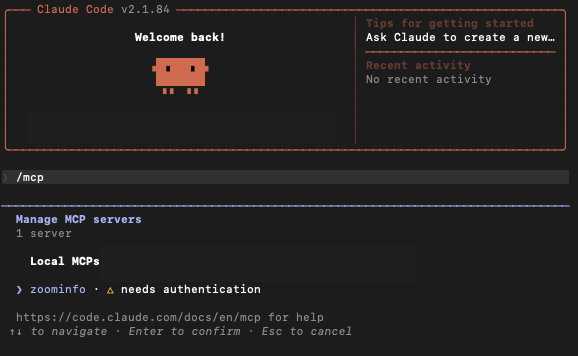
When you select ZoomInfo's MCP server, it will prompt Claude Code to open your browser and you will see the ZoomInfo login screen. From here, login using your credentials or preferred SSO method.
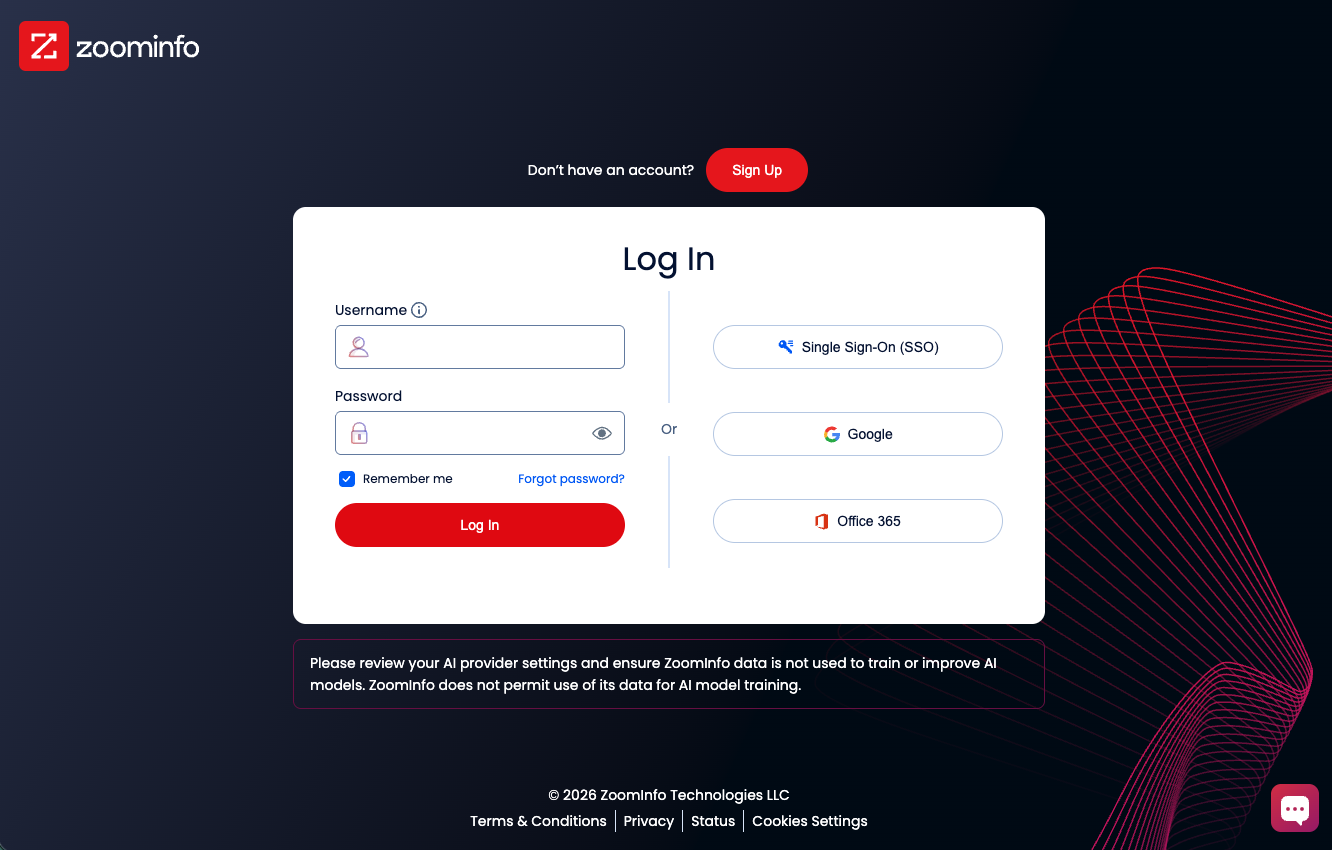
Once the login is successful, you can start accessing ZoomInfo's MCP tools via Claude Code!
Updated about 2 months ago